FAQ - Rohos Logon Key for Mac
How to activate Rohos Logon Key for Mac
1. Launch Rohos Logon Key for Mac and click [15-day trial period]. 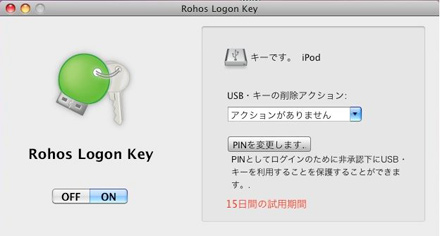
2. After entering the registration key, click the [Register] button. 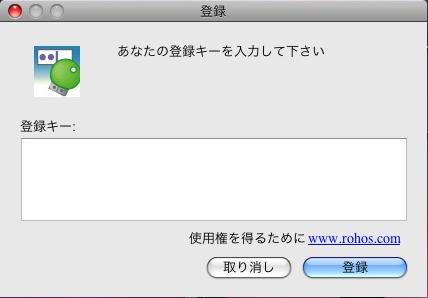
Uninstall Rohos Logon Key for Mac
---------------------------------
For OSX 10.9
---------------------------------
To uninstall Rohos Logon Key, please follow the steps below:
1. Restart your Mac.
2. Immediately press and hold the Command key (Apple logo) and the S key (Command +S will boot into single-user mode).
3.Wait for the command line prompt to appear.
4. Type “mount -uw /” and press Enter.
5. Type “rm /var/db/auth.db” and press Enter.
6. Type “reboot” and press Enter.
Your Mac will restart and display the normal login screen.
---------------------------------
For OSX 10.6 - 10.8
---------------------------------
To uninstall Rohos Logon Key, please follow the steps below:
1. Click the Rohos icon in the status area and then click Exit.
2. Open rohos_logon.zip and run “UninstallRohosLogon” and follow the on-screen instructions.
Note: If the uninstallation is performed but is locked by the OS and cannot be completely uninstalled, please try the Safe Mode procedure below.
1. Restart your Mac
2. Press Apple + S during the system startup process
3. Type mount -uw /
4. Press Enter
5. Enter sudo pico /etc/authorization
Use ctrl + v to navigate through the buttons and find the system.login.console group
In this key, edit the following line:
“<string>rohos:test</string>” :
of
“<string>loginwindow:login</string>” :
example:
<key>mechanisms</key> <array>
<string>rohos:test</string>
<string>builtin:smartcard-sniffer,privileged</string>
…
Use the arrow keys to move the cursor to the “<string>rohos:test</string>” line and edit
“<string>rohos:authenticate</string>” :
Edited to the following:
“<string>builtin:login</string>” :
authenticate-session-owner-or-admin-rohos
Edited to the following:
authenticate-session-owner-or-admin
Exit with Ctrl + X. Enter “y” and press Enter to save.
The editor closes and the command line appears.
6. Type reboot and press Enter to restart.
How to find Rohos Logon Key for Mac log
Rohos Logon Key writes logs to the console by default. Enable “Write Logs” in the settings to generate log files for troubleshooting.
Find the log string:
1. Open the console (/Applications/Utilities/Console.app)
2. Select system.log
3. Copy the Rohos Log string that starts with 'Rohos logon' or 'SecurityAgent'.
Can't log in to Rohos Logon Key for Mac
If you are unable to log in to your Mac due to USB failure or loss, please uninstall Rohos Logon Key using the following method.
- Restart your Mac
- Immediately afterwards, press the Command key (Apple) and the S key at the same time
- (Boot into single user mode)
- Wait for the command line prompt to appear
- Type “mount -uw /”
- Press Enter
- Type “sudo pico /etc/authorization” to edit.
- Use the ctrl + v buttons to search for the "system.login.console" group.
- Find the key “ rohos:test ” and change it to “loginwindow:login ”
- Find the “rules” section > “authenticate” group and replace “ rohos:authenticate ” with “ builtin:login ”.
- Exit with Ctrl + X, type “y” when prompted to save, and hit Enter to save the changes.
- Once you are back at the command line, type “reboot” and press Enter to reboot.