
製品番号 20040518-007
Actual Window Manager
Actual Window Manager
バージョン 8.14.4
更新日付 2020/10/23 09:14:33 (Fri)
開発元 Actual Tools
Trial period: 60 days
Couldn't load pickup availability
ライセンスに関して
互換OS
共有
購入時の注意
About upgrading to 7.x
Customers who purchased before July 31, 2011 50% off the price You will need a new key. Please contact our support with your purchase information (purchase ID, email address, activation key). Contact us
Customers who purchased before March 12, 2012 FREE A new key is required.
You can get a new one by opening a ticket on the following page and entering your current key.
Free for customers who purchased after March 12, 2012 Latest version
製品情報
Key features:
- Display the window in the desired position.
- It is displayed at a preset size.
- Display important windows on top.
- Window minimization - normal minimize, rollup, transparent window, etc.
- Ghost a window - This function ignores all mouse actions within a specified window (keyboard actions are still possible).
- Remove from taskbar - This feature keeps the window on the desktop but hides it from the taskbar.
Fully compatible with Windows
You can change the settings by right-clicking on the top of the window.
Individual settings for every window
- Rollup/Unroll
By pinning a rollup or email window, you can check the information (window) hidden underneath it. By pinning an email, you can check the contents by dragging and dropping it without switching screens.
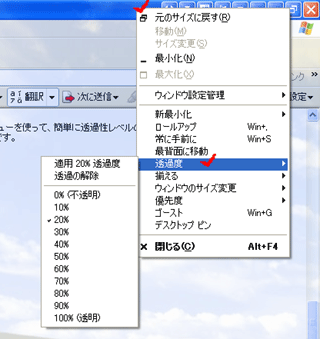
- Transparent Window Display(Excel table with transparency effect)
The transparent Tablet PC Input Panel allows you to see through to windows displayed behind it.
You can easily change the transparency level using the system menu.
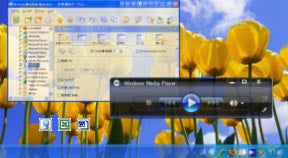
Always on top allows you to keep the selected window on top of other windows.
製品詳細情報
製品情報の詳細1を見る
Key features:
- Display the window in the desired position.
- It is displayed at a preset size.
- Display important windows on top.
- Window minimization - normal minimize, rollup, transparent window, etc.
- Ghost a window - This function ignores all mouse actions within a specified window (keyboard actions are still possible).
- Remove from taskbar - This feature keeps the window on the desktop but hides it from the taskbar.
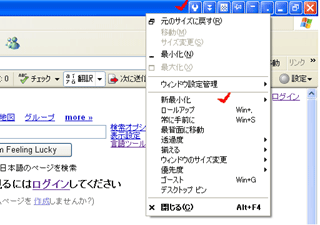 |
Windows Fully compatible with You can change the settings by right-clicking on the top of the window. |
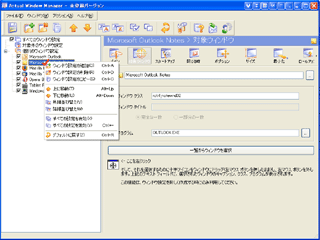 |
Individual settings for every window |
|
|
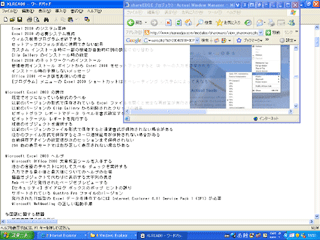
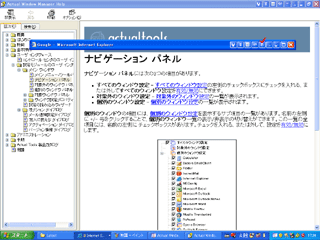
Rollup / Unroll By pinning a rollup or e-mail window, you can view the information (window) hidden underneath it. |
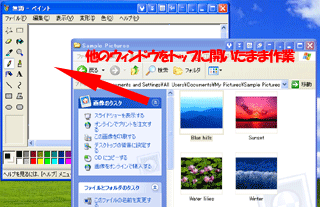 |
By pinning emails, you can check the contents by dragging and dropping them without switching screens. |
|
|
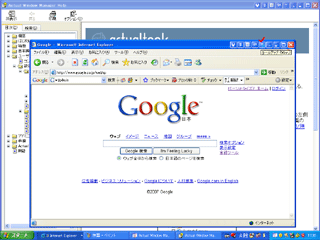
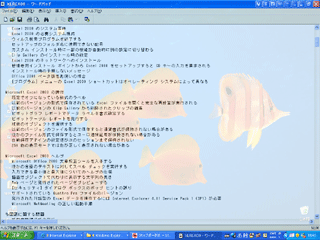
Transparent Window Display (Excel table with transparency effect) The transparent Tablet PC Input Panel allows you to see through to windows displayed behind it. You can easily change the transparency level using the system menu. |
 |
|
製品情報の詳細2を見る
Actual Window Manager User Guide (CHM)2007/09/10 11:09:24 (Mon)
Collapsible content
よくある質問
アクティベーション方法
How to activate Actual Tools Actual Window Manager <How to activate the key> 1. Right-click the icon displayed in the system tray and click [Activate]. 2. The activation dialog will appear, so enter your registration name and activation key. 3. Click [OK]. *You can also open the activation dialog from [Help] > [Activation] on the settings screen.
バージョン履歴
[!] Important
[+] New Features
[-] Problem fixed
[*] change
-------------------------------------------------------------------
Actual Window Manager 8.14.3 (December 27, 2019)---------------------------------------------------------------------
[!] Although very rare, it may happen that the application crashes while it is running.
[!] If installed in a folder with insufficient security measures (a folder other than [Program Files]), Actual Window Manager may crash at irregular times.
[!] Adobe products, TechSmith products, Parametric Technologies products, and some other applications have been known to hang when two or more Actual Tools programs are running at the same time (closing all but the Actual Tools programs will make the hung applications return to normal).
[+] Virtual Desktops: Virtual Desktop Switcher windows can now be resized on the fly, just like any other resizable window, and destination/size settings are now remembered (for each monitor in individual mode and for cloned switchers in classic mode).
[-] Virtual Desktops: The following bugs were fixed:
- Actual Window Manager Control Center pause/resume randomly causes memory errors in the Control Center process
- An issue where a window that is active on a desktop would not come to the foreground when switching to that desktop
- When switching desktops by clicking an empty cell in the switcher, the active window on the desktop disappears.
- An active window becomes inactive after moving it to All Desktops, whether automatically or manually.
- When switching between Classic and Individual modes, the Z-order of currently open windows changes.
- In Excel 2013 and later, the Find and Replace dialog disappears when switching to another desktop and then switching back again.
- When Mozilla Firefox is launched on a specific desktop, if you switch to another desktop and then launch Firefox again, it will launch on the previous desktop.
- The first virtual desktop is activated when opening the notification area icon context menu for the following applications: Intel Graphics Control Panel, Skype (desktop), Slack (desktop), MS Teams, KiTTY, Insync, Everything
- When switching from Classic to Individual mode, two switchers appear on the same monitor in a multi-monitor setup
- Switcher position restore was incorrect after switching modes
- Tip containing desktop name may appear in the top left corner instead of in the center
- When dragging a minimized window icon between different window switchers, it remained in the source switcher until the window was restored
[-] Tabbed Explorer, Windows 10: The search box in the tabbed File Explorer window did not work since build 18363.
[-] Title buttons, Windows 10: Fixed low height of additional buttons in maximized windows of Chromium-based applications (Google Chrome, Slack for Desktop, Vivaldi, Opera, Yandex.Browser, Spotify, etc.).
[-] Title buttons, Slack desktop: The following bugs were fixed:
- Fixed an issue where extra buttons would overlap regular buttons when Shift Buttons Horizontally was set to 0
- The glyph of the additional button is almost the same color as the title bar, so it is barely visible.
- Window was not maximized correctly when additional buttons were present
[-] Title Buttons: Fixed a rare bug that caused the Add button to not be displayed until the window was dragged/resized.
[-] Title Buttons: Fixed an issue where additional buttons were hidden behind the host window's titlebar or visible through other windows in the following cases:
- When you minimize a window and then restore it via Aero Shake
- When you start a capture with the Windows Snipping Tool
- In Excel 2013 or later, when you open the Find and Replace dialog and then open the main Excel window
[-] Window Behavior: The "Don't rush to show windows" option did not work as advertised in Chromium-based applications.
[-] Window Behavior: When applying the Send to Back action on startup, the Alt key was displayed as pressed (in fact, pressing and releasing the Alt key solved the issue). Fixed an issue.
[-] Window Actions: Custom tile buttons/hotkeys for the "Run Keyboard Macro" action stopped working with default window settings.
[-] Desktop Profiles, Settings: The Authenticate button in the Multimonitor > Desktop Profiles panel was now displayed with the wrong monitor number in case the monitor coordinates were saved in a different profile than the actual one.
[-] Fixed the issue where button text in the Rating dialog was garbled in Chinese and Japanese.
--------------------------------------------------------------------
Actual Window Manager 8.14.2 (October 29, 2019)-------------------------------------------------- ------------------
[!] Fixed a number of runtime interval issues to improve speed, robustness, and reliability.
[+] Added the ability to update an existing license key: the "Enter new license key" option is now available in the "License" settings window panel in the Tools menu and in the context menu of the Actual Window Manager notification area icon. Added.
[+] Window Behavior: Added an option to keep a window always in the back: the Always in back option can be used from the context menu of the Send to back title button or from the Options menu of the window's system menu. Select Send to Back.
[+] Window Actions: The "Minimize to tray/screen" action can now be inserted into a combo action sequence.
[*] Title buttons: Automatic placement of additional buttons works again in Google Chrome 75 and higher.
[*] Per-application Audio Device Switcher: Sound switching is now available again in Google Chrome 76 and higher.
[*] Windows Layout: The speed and reliability of the "Bind Layout to Desktop Arrangement" feature has been significantly improved.
[*] Window behavior: The "Re-arrange split windows" feature now works directly in a multi-monitor environment.
[*] Files, Folders, Preferences: When a new entry is added to the list of favorite folders via the title button, the list in the Preferences window is now updated instantly.
[*] Clipboard History: When you right-click on an item in the History window, it is selected before showing the context menu.
[-] Virtual Desktop: The following bugs have been fixed:
- The [Auto Desktop Switching] function stops working.
- In Windows 8/8.1, hidden windows of inactive windows are not displayed when the desktop is activated.
- If you hide a window in the active window and then activate another desktop, the add button of the hidden window will be visible when you switch to the first desktop (since the window remains hidden, only the button will appear floating).
[-] Actual Taskbar: Fixed the issue where the Action Center button on the secondary taskbar did not work if the main system taskbar was hidden.
[-] Window Actions: The "Run Keyboard Macro" action did not work in combo sequences.
[-] Window Behavior: Dragging a rolled up window unrolled it if the "Set minimum size" action was enabled in Window Settings.
[-] Title Buttons: The following actions did not work correctly when you clicked the Group button after selecting it in the Group button's context menu:
- Cut/Copy/Paste
- Manage window settings
- Mirroring
- Go to virtual desktop
- Go to Desktop Split Tile
- Audio device switching
[-] Windows Monitoring Log: The following bugs were fixed:
- If you drag an excluded window, the log fills up instantly with duplicate "New Window" events
- A duplicate [New Window] event always occurs after a [Title Change] event
- The log window itself is not displayed in the log
[-] Files, Folders, Settings: If you added a path to the list of favorite folders via a title button and then made some adjustments in the Settings window, you could not add that path again via the title button.
[-] Settings: Window Settings Index panel:
- Fixed an issue where certain parameters were not displayed in the "Fix min/max size" item in the "Size" section.
- Fixed issue where the startup section would show internal non-local recognizers after changing settings on the startup page
-------------------------------------------------- -------------------------
Version 8.14.1 (July 9, 2019)-------------------------------------------------- -------------------------
[!] Improved the internal logic of the global hook handler to improve compatibility with systems running on multi-core CPUs.
[!] Title button, Windows 10 build 18362 and above: A freezing issue has been reported when opening a blank notepad.
(Example: When no specific document is specified)
[-] Window Behavior: Added the ability to quickly copy window-related information (caption, class, program executable name, etc.) to the clipboard. To copy this information, right-click on the Copy Title button or use the Options > Copy submenu in the window's system menu.
[+] Clipboard history: It is now possible to save history to a file so that it can be shared between sessions. Currently only plain text or formatted text can be saved, in order not to slow down the process and not to block the system for long periods of time. The history file is encrypted to prevent unauthorized access to the stored information.
[*] Clipboard history: Improved:
- You can now paste formatted text as plain text using Ctrl+Enter or the Paste Text Only command in the context menu (this command was formerly the Clear Text Formatting command). Pasting plain text does not modify the content of the original entry.
- The selected entry will be saved until after you paste or add a new entry.
- The pasted entry will appear at the top of the history list if the Auto-hide History Window option is enabled.
- If the copied information is already in the history list, it will be moved to the top.
[-] Actual Taskbar, Windows 10: If the "Replace system taskbar" option was enabled, the Action Center did not appear when pressing the corresponding button on the Actual Taskbar.
[-] Virtual Desktops, Windows 10: Fixed an issue where icons of some UWP applications were not displayed in the Virtual Desktop Switcher until their windows were enabled.
[-] Windows 10: Fixed an issue where UWP app icons after launch were displayed as default icons instead of the original ones.
[-] Window Behavior: Maximized windows were restored to their original size when they were minimized to the notification area or screen and then restored using the notification area icon (Windows Live Mail, Microsoft Outlook) or the Unhide context menu.
---------------------------------------------------------------------------
Version 8.14 (May 15, 2019)---------------------------------------------------------------------------
[!] Microsoft Office 2013 and above: When you lock and then unlock a user session, the application window may remain locked for a long period of time (up to several minutes).
[+] Mirroring: Active mirroring is finally implemented: active mirrors allow mouse clicks, pen drawing, and touch gestures on mirrored content, as if you were interacting with the source of what's being mirrored.
Note: Pen/touch support currently only works reliably on Windows 10.
[+] Multi-monitor Backgrounds, Slideshow Screensavers: The "Shrink to fit monitors" mode was added to the "Wallpaper position" option: images larger than the host monitor will be displayed the same as in the "Stretch to maintain aspect ratio" mode, images smaller than the host monitor will be centered on the monitor.
[+] Window Behavior: It is now possible to disable or turn off automatic semi-transparency on mouseover for a specific window (see the Options - Transparency submenu of a window's context menu).
[+] Virtual Desktops: Now you can make the Virtual Desktop Switcher maintain its position when switching using hotkeys. Turn off the new Show Switcher near mouse pointer option in the Virtual Desktops panel to make the Switcher stop following your mouse and stay in its last position.
[*] Actual Taskbar, Windows 10: Improved compatibility with recently added builds (18885 and above).
[*] Actual Taskbar, Windows 10: Finally, jump lists are supported in UWP apps.
[*] Actual Taskbar, Windows 10: Taskbar display is now correct in light visual themes.
[*] Actual Taskbar, Windows 10: Action Center, Sound volume and Network windows now move to the monitor where the respective icon was clicked.
[*] Actual Taskbar, Windows 10: Action Center icon now shows the status of the "Focus assist" setting
[*] Actual Taskbar: Dragging a button to the taskbar or notification area can now be canceled by pressing the Esc key.
[*] Tabbed Explorer: Container windows now scale their content to the correct DPI resolution when dragged across monitors with different DPI resolutions.
Note: May not work on older Windows 10 builds (before 15063).
[*] Settings: Settings windows and dialogs can now scale their content to the correct DPI resolution, including when dragging between monitors with different DPI resolutions.
[-] Mirroring, Windows 10: Hardware accelerated mirrors could get stuck on the first frame and not update.
[-] Virtual Desktops: When using Microsoft Excel 2016/2019, the Ribbon titlebar could no longer be found after switching to another virtual desktop and then back, after having been shown/hidden.
[-] Virtual Desktops, Windows 8 and higher: The following issues were fixed:
- When switching to another virtual desktop to show/hide a window, some windows (Google Chrome, ThinkOrSwim) took a long time to redraw.
- Thumbnail previews not showing in hidden windows on inactive desktops
[-] Actual Taskbar, Windows Behavior: When using the "Move to Monitor" action to move a maximized window between monitors, the window's task button could disappear from all taskbars until the window was closed and reopened.
[-] Actual Taskbar, Windows 10: UWP app icons in task buttons and jump lists were not updated correctly after switching between light/dark visual themes or changing the system accent color.
[-] Actual Taskbar, Windows 10: Fixed the following issues with high DPI resolution support:
- Start button icon is too small
- Touch Keyboard button shows wrong icon
[-] Actual Taskbar, Windows 10: Preview thumbnails were sometimes displayed incorrectly.
[-] Actual Taskbar, Windows 7: The vertical taskbar was drawn incorrectly in Classic visual theme.
[-] Window Behavior: Google Chrome windows in fullscreen or kiosk mode did not respect placement restrictions or fix min/max size actions.
[-] Multi-monitor, Windows 10: Switching between secondary monitors via the Actual Window Manager notification area icon context menu sometimes did not work.
[-] Explorer with tabs: the Share dialog could not be opened from a container window.
[-] Desktop Split: Fixed the following issues with high DPI resolution support:
- Active tile bounds were not scaling correctly
- DPI-aware app windows pop out of the tile after being placed inside a tile
- When dragging a window in a non-DPI-aware app, the active tile highlight does not respond to the mouse pointer.
- Tile layout previews are not displayed correctly in the Microsoft Outlook 2019 window
[-] Desktop Profiles: The profile list in the Control Center context menu was not updated when adding/removing a profile in the Settings window.
[-] Title Buttons: Additional buttons in a Firefox Quantum window maximized on a secondary monitor and shifted up or down relative to the primary monitor covered regular buttons.
[-] Title Buttons: Closing the main window of Microsoft Visual Studio 2010 and higher using the Exit command from the File menu or the Alt-F4 hotkeys could result in a hang if the Aero visual theme was enabled and additional buttons had been added to the title bar of the window.
[-] Title Buttons: Additional buttons were incorrectly positioned and displayed in Microsoft Office 2019 windows at high DPI resolutions.
[-] Title Buttons: The Add button did not work properly in the Sticky Notes window.
[-] Window Actions: Service windows such as Change Transparency, Move to Monitor, Move to Split Tile etc. were not scaled correctly to the current DPI resolution.
[-] Window Behavior: The floating minimize screen icon on the right or bottom of the monitor no longer became invisible immediately after reducing the monitor resolution.
[-] Window Behavior: Minimizing a window after snapping it from the right/left half of a monitor to the notification area lost its snapped state after restoring it.
[-] Settings, Desktop Split: The corresponding size of tiles was not maintained when copying tile layouts in the Tile Editor between monitors with different resolutions.
[-] Settings: Fixed an issue that caused the "Copy Settings from Other" command to not work.
---------------------------------------------------------------------------
Version 8.13.3 (November 28, 2018)---------------------------------------------------------------------------
[!] Windows 10 build 17763 and above: System SmartScreen process with Actual Window Manager running is known to occupy 100% of CPU resources.
[!] Window Settings: Exclude functionality no longer works since version 8.13.
[*] Settings: The Special Settings editing window is now completely separate from the main Settings window.
- Changes are now saved immediately when you click the Apply button in the corresponding window
(Similarly, there is no need to press [Apply] in the main window.)
- Fully functional even after closing the main window
[*] Tabbed Explorer: Tabbed container windows now respond to keyboard shortcuts like Alt-Escape, Win-[Shift]-Left/Right/Up/Down/Home etc.
[*] Clipboard history: Pasting from the history window now works correctly when invoked via the notification area icon's content menu.
[-] Tabbed Explorer, Windows 10 build 17763 and above: The titlebar of inactive container windows was not displayed correctly when set to the dark visual theme.
[-] Actual Taskbar, Windows 10: After rearranging the desktop (for example, changing the position/resolution of a secondary monitor), windows on the secondary monitor could appear squashed vertically or horizontally.
[-] Actual Taskbar, Windows 10: In separate mode, task buttons for windows on a system virtual desktop were displayed on the system taskbar after switching from an inactive desktop on a secondary monitor.
[-] Actual Taskbar: The issue of inverted icons of additional taskbar buttons (Search, Recycle Bin, Ink Workspace, Switch Input Language) was fixed on systems with right-to-left languages, such as Arabic or Hebrew.
[-] Title Buttons, Windows 10: The glyphs of additional buttons were inverted on systems with right-to-left languages, such as Arabic and Hebrew.
[-] Title Buttons: Toggling one of the additional buttons on/off did not update correctly in the Aero visual theme on systems with right-to-left languages, such as Arabic or Hebrew.
[-] Title button, Windows 10 build 17763 and above:
- Fixed an issue where additional buttons would appear in the wrong position if one of the secondary monitors was located on negative screen coordinates
- Fixed an issue where in maximized windows of Microsoft Office 2007 apps, extra buttons would overlap with regular buttons, and hovering over the overlapping minimize button could result in a temporary hang
- Fixed an issue where the glyphs of additional buttons blended into the title bar in dark visual themes when the "Show color in title bars" system option was turned off
[-] Title button, Windows 10 build 18267 and above:
- Fixed an issue where extra button glyphs blended into the title bar when the "Show colors in title bars" system option was turned off
- Fixed issue where the Add button did not work when changing the system accent color
[-] Title Buttons: The issue that could cause a hang when viewing pages with a lot of content in Mozilla Firefox 50+/Quantum was fixed.
[-] Window Actions: The Restrict Placement window action did not work for maximized Google Chrome windows.
[-] Virtual Desktops: Adding a classic desktop item after adding an individual desktop item lost the association with the corresponding individual desktop item in Window Settings (Startup - Move to virtual desktop - Specific) and the custom hotkey "Move to virtual desktop".
---------------------------------------------------------------------------
Version 8.13.2 (December 12, 2018)---------------------------------------------------------------------------
[!] Windows Vista/7: dwm.exe crashes every time it is run after unloading the Actual Window Manager Control Center.
[*] Title buttons, Windows 10: Automatic placement of additional buttons is improved in Google Chrome version 66 and higher at non-standard DPI resolutions.
[*] Title buttons: The Add button now works in Chromium-based applications, such as Opera/Vivaldi/Yandex web browsers, Slack desktop client, and Spotify UWP app.
[+] Mouse Actions: Granular window action invocation is now possible in Chromium-based applications, such as Opera/Vivaldi/Yandex web browsers, Slack desktop client, and Spotify UWP app.
[*] Desktop Split: It is now possible to arrange windows in tiles in Chromium-based applications, such as Opera/Vivaldi/Yandex web browsers, Slack desktop client, and Spotify UWP app.
[*] Tabbed Explorer: Pressing Alt-Space in a tabbed container window now displays a context menu.
[-] Scrolling in inactive windows: When this feature was activated, scrolling with the mouse wheel in the active windows of some applications did not work (for example, in Mozilla Firefox and Google Chrome web browsers).
[-] Logon screen slideshow, Windows x64: The slideshow displayed a warning about the evaluation period expiring despite having a registered retail version of Actual Window Manager.
[-] Settings: At very high DPI resolutions (up to 200%), the first option of each group overlapped with the group title.
---------------------------------------------------------------------------
Version 8.13.1 (September 27, 2018)---------------------------------------------------------------------------
[!]Windows 10: Fixed an issue where Task View windows sometimes did not display correctly if Actual Window Manager was set to "Launch at Startup".
[+] Desktop Split: It is now possible to add custom "Go to Desktop Split Tile" hotkey action, mouse action and title button action.
[+] Combo actions: The "Move to Desktop Split Tile" action can now be inserted into a combo action sequence.
[*] Tabbed Explorer, Windows 10 Insider Preview: Tabbed container windows now support the dark visual theme.
[*] Per-Application Audio Device Switcher: Improved compatibility with Sonic Suite 3 and Nahimic 2 audio software.
[*] Hotkeys: Custom Run Program hotkeys now work regardless of which window is active.
[*] Windows 7 and higher: Restored the visibility of notification area icons of apps (e.g. Task Manager, Skype) launched with different user credentials.
[*] Settings: all toolbars now follow the options in the Toolbars group of the Options - User Interface panel.
[-] Multi-monitor Task Switcher stopped working on all systems older than Windows 10.
[-] Actual Taskbar: The MS Teams app button remained on the taskbar after minimizing the window to the notification area in a custom way.
[-] Actual Taskbar, Windows 10: Fixed an issue that made it impossible to close pop-up notifications on notification area icons of programs such as AVG or Avast.
[-] Actual Taskbar: Fixed an issue where in rare cases the notification area of the secondary taskbar remained empty.
[-] Actual Taskbar: When restoring a minimized window, its button sometimes disappeared from the taskbar if the minimize/restore animation effect was enabled.
[-] Actual Taskbar, Windows 7 and higher: After clicking the Show Desktop button, the Aero Peek effect remained active until the mouse pointer was no longer over the button.
[-] Windows 10, Window Settings: Certain settings were not applied to UWP apps running in fullscreen (e.g. Groove, Solitaire Collection).
[-] Windows 10, Actual Taskbar: Task buttons were not displayed in UWP apps running in full screen.
[-] Windows 10, Title Buttons: When a UWP app was restored from full screen, additional buttons were not displayed in the title bar.
[-] Windows 10, Quick Settings: The Quick Settings dialog could not be invoked by clicking on the titlebar of a UWP app window.
[-] Window Settings: if you applied the Lock mouse on startup action to a window and then closed it, the mouse remained inside the closed window rectangle.
[-] Settings: The Run Programs panel in General Options suddenly broke in previous versions.
---------------------------------------------------------------------------
Version 8.13 (August 21, 2018)---------------------------------------------------------------------------
[!]Windows x64: The overall workload on the system has been significantly reduced (especially on multi-core CPUs).
[+] Windows Layout: Automatic preservation and restoration of current windows per desktop configuration is finally implemented.
How it works: Every 5 seconds, Actual Window Manager saves the arrangement of your open windows. When you change your desktop configuration or arrangement (plug/unplug a monitor, plug your laptop into a docking station, change your monitor resolution, etc.), it checks if there is saved information for the new desktop configuration and, if there is, applies that saved arrangement to your open windows. In other words, the window layout is restored when you return to a known desktop configuration.
For options to adjust this new feature, see the Layout & Snapping - Layout panel.
[*] Settings: Windows now scale correctly to fit the DPI resolution of the monitor they are opened on.
[*] Mirroring: Mirroring can be toggled into full screen mode by double-clicking, pressing Alt-Enter or pressing F11. Full screen mode can be exited by pressing Esc.
[*] Desktop wrapping: Primarily a ground-up rewrite to provide predictable and expected behavior on non-uniform desktop configurations.
[*] Files Folders: Recent folders list now updates more accurately and reliably.
[-] Files/Folders: The list of recently used folders could sometimes show empty entries.
[-] Actual Taskbar, Windows 7 and higher: programs running with administrator privileges could not be minimized by clicking the taskbar button.
[-] Actual Taskbar, Windows 7 and higher: Preview thumbnails were not displayed correctly at high DPI resolutions.
[-] Actual Taskbar, Windows 10: Preview thumbnails were displayed differently than in the system taskbar.
[-] Desktop Split: The Move dialog sometimes did not show the entire tile layout.
[-] Save idle screen: Fixed automatic mode:
- Idle screensaver does not start on primary monitor in Windows 10 when Actual Window Manager is installed with the help of system utilities and administrator privilege tools
- Idle screensaver stops working if the desktop itself is active
- Idle screensaver not working after closing and rebooting (caused by mouse movement)
- Cannot stop idle screensaver on connected monitor after first disconnecting
- Idle screensaver does not stop when switching to a different user account and then back to the same user
- Mouse movements are ignored on monitors with no active windows
[-] Drag-and-Scroll, Windows x64: The feature did not work in 32-bit apps unless the activation mouse button was set to "Left".
[-] Easy Drag/Resize Window, Windows x64: The feature did not work in 32-bit applications.
[-] Easy Drag/Resize Window, Windows 10: The feature did not work in UWP applications (e.g. Settings, Skype, Store, Xbox, Calculator, etc.).
[-] Easy Drag/Resize Windows: The feature did not work in Chromium-based applications (e.g. Google Chrome and Vivaldi web browsers, Slack desktop client, Microsoft Teams desktop client, etc.).
[-] Title Buttons: The Add button did not respond to right-click in Foxit Reader.
[-] Title Buttons: The free space detection for additional buttons in Google Chrome (version 67 and later) stopped working at high DPI resolutions.
[-] Move to Monitor: When moving a maximized Google Chrome window to a monitor with a different DPI resolution, the window was no longer displayed within the desktop area.
[-] Screen Minimization: Clicking on a persistent floating screen icon could disrupt input focus (e.g. become the active foreground window) and "swallow" a fast second click if the one-click activation mode was enabled.
---------------------------------------------------------------------------
Version 8.8 (March 31, 2016)---------------------------------------------------------------------------
[!] Settings: Window settings general options (title button skin, window menu items order, predefined window sizes, etc.) have been moved from the Options category to the Window Settings category in the main Settings window.
[!] Settings: General options sub-items have been moved from the window settings navigation tree to tabs in the General options details panel.
[+] Settings: Back/Forward buttons have been added to each Settings window, allowing you to navigate through the user interface like in a web browser.
[+] Settings: An advanced search box has been added to all Settings windows. Now you can search for the panel containing the option you need by just typing the first few letters of the search term.
The search engine will search for the following text information:
- 1) Captions of user interface panels and all sub-controls they contain (control hints are not included to ensure search speed)
- 2) Built-in or user-added objects of the following types:
- - Specific window settings
- - Window Exclusion
- -Desktop Profile
- - Desktop Mirror
- - Desktop split layout
- - Hotkeys
- - Mouse actions
- - Title button
- - Window menu items
[*] Settings: Undo/Redo commands now remember changes for each window.
---------------------------------------------------------------------------
Version 8.7 (April 2, 2016)---------------------------------------------------------------------------
[!] The navigation panel in the main Settings window has been removed.
[!] Settings: The Desktop Split category in the main Settings window has been renamed to Layout and Snap, and the Windows Layout and Window Snap options have been moved out of the Options category.
- The Desktop Split - Tile Layout panel has been split into two:
- Desktop Split - General on/off switch, activation mode
- Tile Layouts - A list of tile layouts themselves
[!]The source of the Google Web Slideshow has been removed because Google has discontinued its Google Image Search service.
[+] The long-awaited feature resize/drag snapped windows (whether snapping method is Classic Snap, Aero Snap, Desktop Divider or manual) has been added.
In brief, bulk operations on adjacent windows work like this:
- Resize together: When resizing a window, if adjacent windows are dragged on their borders or corners, they will be resized accordingly (as if there was a splitter between them)
- Drag together: When you drag a window, adjacent windows will move together as if they were one large window.
- By default, both features are on in "Button Up - Ctrl" mode, and can be temporarily disabled by pressing the Ctrl modifier key.
- You can disable these features, switch to "While Button Pressed" mode, or change the modifier key combinations in the new Layout Snap - Bulk Resize/Drag panel.
[+] Settings: You can now select all items in a list using the hotkey Ctrl+A. As this key combination is now used to add new items to a list, the hotkey for new item has been changed to Ctrl+N.
[*] Settings: Hotkey combinations for list operations in all list editing panels are now unified:
- Ins key, Ctrl+N key: Add new item
- Del key, Ctrl+D key: Delete selected item
- F5 key: Copy selected item
- Ctrl+=, Ctrl+NumPad+: Enable all items (if available)
- Ctrl+[-], Ctrl+NumPad[-]: Disable all items (if available)
- Ctrl+A : Select all items (if available)
[*] Settings: The confirmation request for "Delete item" is now hidden in all list view panels. If you accidentally delete an item you need, just click the Undo button at the bottom left of the main Settings window or use the Undo hotkey (Ctrl+Z by default).
[*] Settings: Flashing that occurs when trying to resize the Settings window or anything inside it has been significantly reduced.
[*] Windows 10: Hotkeys now work in Metro apps.
[*] Windows 10: The additional title buttons now work in the Edge web browser (as well as other Metro apps).
[*] Windows 10: Actual Taskbar now highlights grouped buttons the same way as the system taskbar does.
[*] Windows 10: Actual Taskbar can now display a progress bar on its buttons, just like the system taskbar does.
[*] Backup/restore now includes logon screen settings.
[*] Proper description has been added to the Logon Screen service.
[*] The multi-monitor screensaver now detects screensavers that fail to start or don't support preview mode and shows a message instead of a blank screen.
[*] Settings: When individual Window Settings are reopened, they now appear in the same position and size.
[-] Office 2013 and higher: Additional title buttons overlapped standard tile buttons.
[-] Additional title buttons sometimes did not update in the Aero visual theme.
[-] Windows 8/8.1: Actual Alt-Tab Switcher could show hidden windows.
[-] Windows 10: The "Run as administrator" option did not work when Windows PowerShell was run from a button pinned to the Actual Taskbar.
[-] Installer: The Installer displayed interactive dialog responses despite being launched using the /SILENT or /VERYSILENT command line options.
[-] Actual Taskbar: The issue of the Start menu not being displayed on the latest Windows 10 Insider Preview (build 11102) was fixed.
[-] Actual Taskbar: Bulk commands like Minimize All/Restore All did not work properly.
[-] Actual Taskbar: Show Desktop button did not work if you clicked on the highest pixel.
[-] Desktop Split: With Classic Snap's "Snap using split tiles" option enabled, resizing a window moved to a split tile changed its original size (its size before it was moved to the tile) instead.
[-] Windows 10: The Tile Editor window sometimes displayed a gap on the secondary monitor.
[-] Web Slideshow settings in the Settings window were not applied if the Control Center was not loaded.
[-] Windows Vista/7: The progress bar flashed if the Logon screen background setting was applied to the primary monitor.
[-] Settings: Minimized windows were not restored when using the notification area click settings hotkey.
---------------------------------------------------------------------------
Version 8.6.2 (November 23, 2015)
---------------------------------------------------------------------------
[-] Fixed an issue that caused multi-monitor screensavers to stop working.
[-] In the Current Window Screensaver option, the Preview button did not work properly.
-------------------------------------------------- -------------------------
Version 8.6.1 (November 20, 2015)
-------------------------------------------------- -------------------------
[+] Added the ability to swap windows between monitors (see the Swap all windows command in the Actual Taskbar context menu).
[*] Overall stability has been improved.
[*] Buttons in the "Tools - Control Center" panel are now easier to use.
[*] Multi-monitor background slideshow now stops when the screensaver is running or the session is locked.
[*] Windows 10: Improved compatibility with the recently released Threshold 2 update (build 10586):
- - Restored readability of Actual Taskbar context menu
- - Restores the display of recently used items in the Actual Taskbar jump list
- - Eliminate the gap between the Actual Taskbar and the Jump List
[*] Windows 10: The visibility of the Background settings dialog was restored when clicking the Current window background - Settings button.
[-] Windows 10: Additional title button size calculation was incorrect in MDI windows.
[-] Fixed an issue where the monitor order in some digital connectors (DVI/HDMI/DisplayPort, etc.) could differ from that of the system.
[-] Slideshow screensaver settings were reset after clicking the Preview button.
[-] Actual Slideshow When launching a screensaver from the system Screensaver dialog, an error occurred when selecting multiple entries in the slideshow playlist.
[-] Logon Screen Slideshow continued to run in the background even after session login, preventing UAC prompts and using unnecessary CPU.
---------------------------------------------------------------------------
Version 8.6 (October 6, 2015)
---------------------------------------------------------------------------
[+] Your request to have a system trash can has finally been fulfilled. The trash can is available as an additional button on both the system taskbar and the actual taskbar, and can be operated exactly like the desktop trash can:
- - Drag and drop documents to move them to the trash
- - Click to view the folder where you can view the contents of the trash
- - Right-click to display the Trash right-click menu
- You can toggle whether the Recycle Bin is visible on the system taskbar in the Multimonitor - Taskbar panel in the System Taskbar - Additional Buttons group.
- Regarding the Actual Taskbar, you can show or hide the Recycle Bin at any time using the Show Recycle Bin command in the Taskbar context menu.
[+] Stopping/resuming Actual Multiple Monitors can now be done using the following syntax:
- ActualMultipleMonitorsCenter.exe suspend
- ActualMultipleMonitorsCenter.exe resume
[*] Windows 10: Compatibility with third-party Start menu alternatives (Classic Shell, Start10, Start Menu X, StartIsBack++) is restored.
[*] If Actual Multiple Monitors was installed to a trusted location (for example, the Program Files folder) with administrator privileges and then used under a user account without privileges, the Actual Multiple Monitors update installer now displays a warning that to update the installation to a trusted location, it must be run as administrator.
[-] Windows 10: The system Alt-Tab switcher malfunctioned if the "Move to monitor - mouse pointer position" action was enabled in the default window settings.
[-] When a Remote Desktop Client window was resized after going full screen, the additional title buttons were not displayed in the title bar.
-------------------------------------------------- -------------------------
Version 8.5.3 (September 19, 2015)
-------------------------------------------------- -------------------------
[!]Fixed an issue where Actual Multiple Monitors would crash on startup when used with certain video hardware and drivers.
[!] To prevent security breaches, the Logon Screen Service checks the integrity and digital signature of executable files that are executed.
[*] Vista and above: Aero Snap and Classic Snap now work better with Aero visual themes and high screen DPI.
[-] Windows 10: Classic Snap did not snap windows correctly, resulting in small gaps.
-------------------------------------------------- -------------------------
Version 8.5.2 (September 9, 2015)
-------------------------------------------------- -------------------------
[-] Logon screen slideshow stopped loading settings.
[-] The logon screen slideshow caused the evaluation version dialog to be displayed even for registered users.
[-] Fixed an issue where the automatic idle screen save function did not stop working in some cases.
[-] The Preview button on the Multi-monitor - Screensaver panel only worked in the Current Window Screensaver mode until you pressed the Apply button.
---------------------------------------------------------------------------
Version 8.5.1 (April 9, 2015)
---------------------------------------------------------------------------
[-] Actual Multiple Monitors could crash on startup on certain hardware configurations.
[-] Fixed an issue where hardware accelerated mirrors could crash on some versions of Nvidia/AMD video drivers.
Fixed an issue where the logon screen slideshow could cause an "Error executing EFCreate" message to appear depending on the settings.
[-] Windows 10: Actual Taskbar did not show task buttons as active if it represented several windows.
[-] Windows 10: The "Minimize all only on the monitor where the mouse pointer is" option did not work.