


製品番号 20141210-001
AKVIS Neon
AKVIS Neon
バージョン 6.0
更新日付 2022/07/01 11:25:32 (Fri)
開発元 AKVIS
このツールを使用すると、驚くような輝くラインエフェクトを作成できます。
まるで光を使って描く画家になったような気分が味わえます!
簡単な操作で、世界に1枚しかない画像が作れます。
 32bit版:akvis-neon-setup_shareedge.exe64bit版:akvis-neon-setup_shareedge-x64.exe
 Mac版はこちらです。
Couldn't load pickup availability
ライセンスに関して ■Home ライセンスは、個人ユーザーを対象にしたライセンスです。非営利目的でのみ使用可能です。プラングイン版またはスタンドアロン版を選択してください。 ■Home Deluxeは、プラングイン版+スタンドアロン版です。 ■Business ライセンスは、ソフトウェアを商用で使用する営利団体を対象にしたライセンスです。 ■AKVIS 製品購入時に提供されるのは、ライフタイム ライセンスと1年間の無料バージョンアップです。 1つのライセンスにより、2台のコンピュータで利用することができます。
互換OS Windows 10 32bit and Windows 10 64bit



製品情報
製品情報の詳細1を見る
AKVIS Neonを使用すると、お好みの写真が明るく目を引くものに加工できます。このチュートリアルでは、グローエフェクトを強くしたり弱くしたりする方法を紹介しています。
 元画像 |
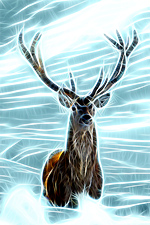 処理後 |
Step1. 効果を適用したい画像を選択します。例としてこの鹿の画像を使用します。
 元画像 |
Step2. エフェクトのパラメータを調整します。今回は青色の光る背景にしたいので、パラメータで色付けオプションを使用します(Home DeluxeとBusinessのライセンスでのみ使用可能です)。
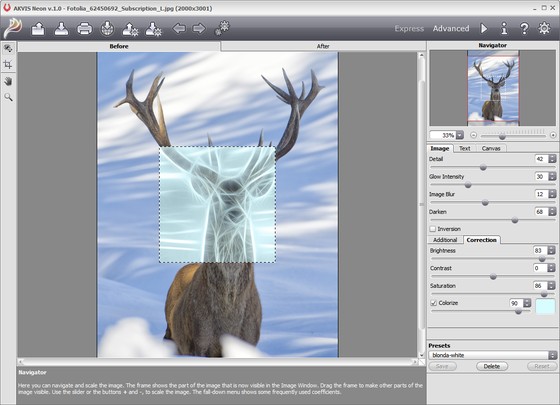 AKVIS Neon |
Step3.  をクリックして処理を開始します。結果は次のようになりました。
 青色のグローエフェクト |
Step4. ヒストリーブラシ を適用し、画像の一部にはエフェクトがあまりかからないようにします。
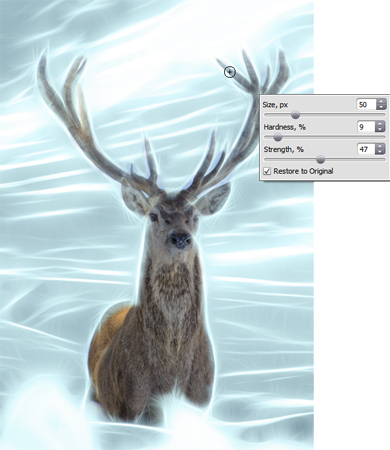 ヒストリーブラシを使用 |
Step5. 結果を保存 します。
します。
グローエフェクトを追加し、再び画像を処理します。この時は色付けオプションは使用していません。
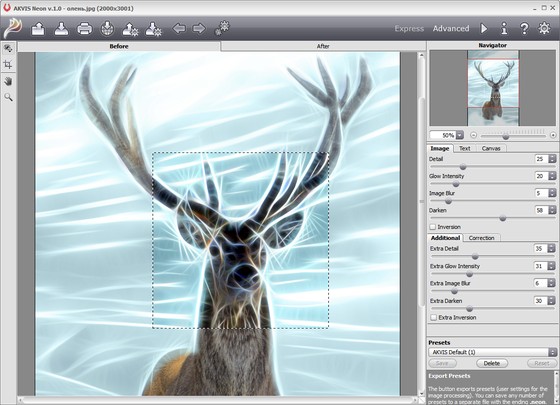 AKVIS Neon |
 処理後 |
製品情報の詳細2を見る
|
このソフトに特別なスキルは必要ありません。簡単に適用できます。 AKVIS Neonを使用すると、普通の写真も豪華になります! 
マジックグローエフェクトは、休日に撮った写真が更にエキサイティングで楽しいものになります。 
AKVIS Neonは、輝く雰囲気の画像、ドラマチックな風景画や肖像画を作成したり、より興味深く表現力豊かな輪郭線の画像が作成できます。 
このプログラムは、ポスターやチラシを制作する場合に便利です。イルミネーションのような画像で注意を引き、製品をより魅力的に見せます。また、写真集に使用する綺麗に輝く背景、抽象画、壮大なイラストを作成できます。 
設定を調整することで、様々な効果:ぼやけて曇ったものをクリアでシャープに輝く輪郭線へ。 他のAKVIS製品と同じインタフェースや機能:SNSへの投稿、バッチ処理、画像のトリミング、キャンバス風テクスチャの追加、テキストの追加、エフェクトをより良くするための追加ツール 
|
 製品情報 製品情報 |
よくある質問
[Regarding license issuance/reissue] Can I install it on multiple PCs?
All AKVIS products, except AliveColors, can be installed on up to two PCs by the same person.It can be installed on two computers, meaning that activation with the same key can only be performed twice.
AliveColors, both the Home and Business versions, can only be installed on one PC.
Program upgrades can be performed by simply overwriting the latest version without activation.
If for any reason you need to reinstall and activate more than once, please contact us with your purchase information.
[TECHNICAL] How to install AKVIS plugin in Photoshop
To install a plug-in in Photoshop, copy the plug-in file into Photoshop's plug-ins folder.Copy the file that ends with .8bf (e.g. Enhancer.8bf) for the 32-bit version, or _64.8bf (e.g. Enhancer_64.8bf) for the 64-bit version.
The locations are as follows.
Photoshop CC 2019:
C:\Program Files\Adobe\Adobe Photoshop CC 2019\Plug-ins\
Photoshop CC 2018:
C:\Program Files\Adobe\Adobe Photoshop CC 2018\Plug-ins\
Photoshop CC 2017:
C:\Program Files\Adobe\Adobe Photoshop CC 2017\Plug-ins\
Photoshop CC 2015.5:
C:\Program Files\Common Files\Adobe\Plug-Ins\CC\
Photoshop CC 2015:
C:\Program Files\Adobe\Adobe Photoshop CC 2015\Plug-ins\
Photoshop CC 2014:
C:\Program Files\Adobe\Adobe Photoshop CC 2014\Plug-ins\
Photoshop CS6:
C:\Program Files\Adobe\Adobe Photoshop CS6 (64 Bit)\Plug-ins\
[Technical Question] Installing Plugins in Corel Paint Shop Pro
If the installation of Corel Paint Shop Pro or other programs fails, you can install them manually using the following method.During installation uncheck the programs and install AKVIS products in the default folder.
(The default is the Program Files folder.)
Copy the *.8bf file (for example, for AKVIS Sketch it is called "Sketch.8bf" in the C:\Program Files\AKVIS\Sketch folder) to the Paint Shop Pro plugins folder.
[Technical Question] What is a Plugin?
A plug-in is a program that adds new features to existing software or enhances its functionality.AKVIS has developed a variety of plugins compatible with popular image editing software such as Adobe Photoshop.
For example, if you use AKVIS products as Adobe Photoshop plug-ins, you can edit any image area in AKVIS products and then bring it back to Adobe Photoshop.
AKVIS plugins are compatible with Adobe products as well as popular image editing software. Check compatibility with the trial version.
If you purchase the plug-in version, it cannot be used as a standalone application.
[Technical Question] Plug-in won't install in Photoshop
Japanese AKVIS products cannot automatically detect the Photoshop Plug-ins folder during installation.In a 32-bit environment it is located in [Program Files], in a 64-bit environment it is located in [program files (x86)] and under it there are folders for each product.
There is a .8bf file in that folder, so please copy it manually and place it in the Photoshop [Plug-ins] folder.
***.8bf is the 32-bit version and ***_64.8bf is the 64-bit version.
Plugins with different versions will not be displayed, so be sure to copy the one that matches your environment.
How to activate AKVIS products (I purchased it but it expired and I can't use it)
Activation is required to use the product as a retail version.The trial version has a 10-day usage limit, and you will no longer be able to use it after the limit has expired, so be sure to activate it.
Activation is possible even after the expiration date.
1. Launch the product
2. Click the [Activate] button in the window that appears.
3. Enter your name (in Roman letters) and activation key
4. Click the [Activate] button
5. If authentication is successful, the product will be installed.
*If you purchased from Sourcenext, two types of keys will be issued. Please enter the 12-digit serial number. The 21-digit serial number is used on Sourcenext and is not the activation key for AKVIS products.
[Operation method] How to change the display language to Japanese
1. Click the gear icon in the top right corner of the window. 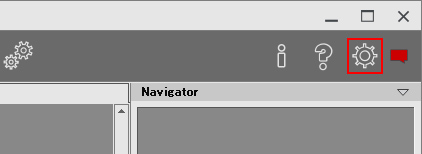
2. Click the [Language] drop-down at the top. 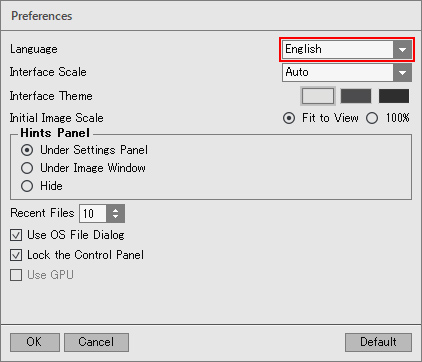
3. Select [Japanese]. 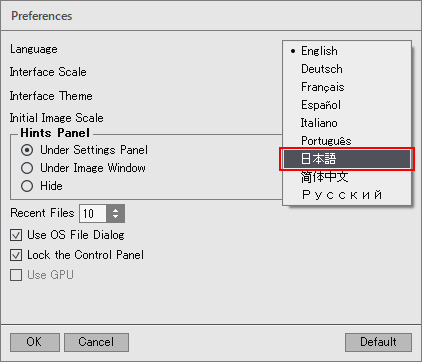
4. Click [OK] to switch the display to Japanese. 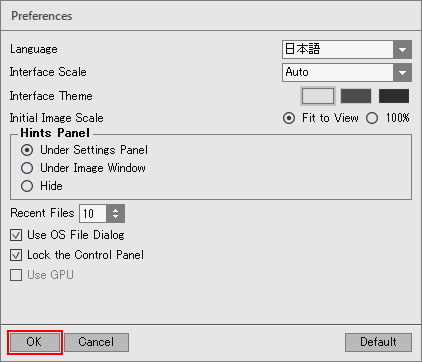
[Other] I entered the serial number but an error occurred and I can't activate it
The serial number (activation key) you enter into your AKVIS product will be a 12-digit number consisting of random alphanumeric characters.If you purchased your product from SourceNext or another company, you may have been issued multiple serial numbers, but in many cases, you may have entered the wrong number, resulting in an error.
Please make sure to enter the license number issued for your AKVIS product.
It is also possible that you have mistakenly entered something that is easily confused, such as an O or a zero.
Whenever possible, we recommend using copy and paste instead of entering information manually.
If you enter your name in Japanese, the characters will be garbled, so please enter it in Roman letters.