製品番号
Artensoft Photo Mosaic Wizard
バージョン 2.0
更新日付 2024/06/05 10:05:32 (Wed)
開発元 Artensoft
Create unique photo posters and gifts of fun moments with friends and family in 5 easy steps.
Photo Mosaic Maker Photo Mosaic Wizard is perfect for designing and printing photo wallpapers, creating photo montages that look like a large photo from a distance, but reveal the individual photos up close.
The trial version cannot save the mosaic file you create, and includes a watermark inside the mosaic blocks.
|
This photo mosaic software can be used not only for individuals but also as a highlight for events and anniversaries.
Even beginners can create amazing photos! |
||
Couldn't load pickup availability
ライセンスに関して
互換OS Windows 10 32bit and Windows 10 64bit
共有

購入時の注意
製品情報
Artensoft Photo Mosaic Wizard
Artensoft Photo Mosaic Wizard creates a photo mosaic from your images in just a few seconds.
Create unique posters and photos to gift with friends and family using photos of fun times. It's easy to make in just 5 steps.
Photo Mosaic Maker Photo Mosaic Wizard is perfect for designing and printing photo wallpapers, creating photo montages that look like a large photo from a distance, but reveal the individual photos up close.
For inspiration, check out our gallery, which displays many cool photo mosaics.
The gallery is here (external site).
Photo Mosaic in 5 Easy Steps
Creating a photo mosaic couldn't be easier.
- Select the master image (the image you will see from a distance).
- Select a tile (select a folder with one or more images, the more the better).
- Click Create Mosaic to create the mosaic (select settings if necessary)
- Move, resize and swap tiles to complete your digital photomosaic. Skip if not needed.
- Save the mosaic photo file.
(Details to be continued)
製品詳細情報
製品情報の詳細1を見る
Creating a photo mosaic couldn't be easier.
- Select the master image (the image you will see from a distance).
- Select a tile (select a folder with one or more images, the more the better).
- Click Create Mosaic to create the mosaic (select settings if necessary)
- Move, resize and swap tiles to complete your digital photomosaic. Skip if not needed.
- Save the mosaic photo file.
The software creates realistic photomosaics by carefully selecting individual tiles and arranging them in matching order to approximate a master image.
We do not use techniques such as color overlays to blend cel images into a master image.
Instead, it solves complex mathematical equations that turn the cell images into stunningly realistic mosaics. 
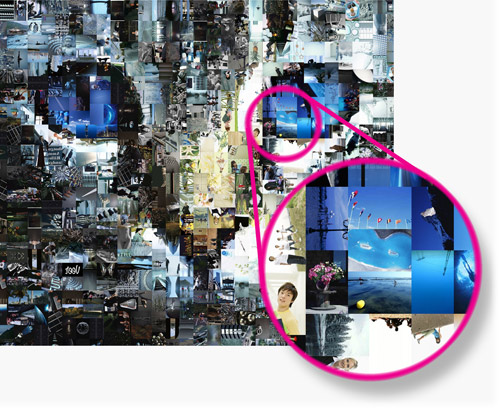
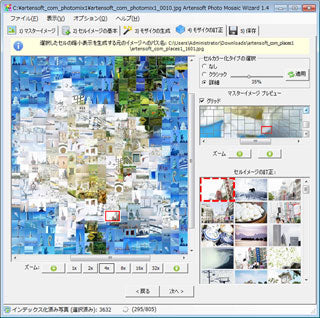
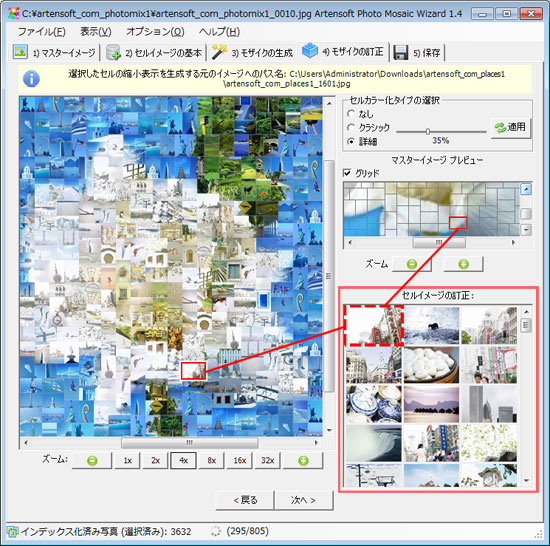
If you're not satisfied with the automatically generated photo mosaic, you can move, resize or swap individual tiles to complete your mosaic photo. 
Unleash your creativity with Photo Mosaic Wizard!
The possibilities with this little tool are endless.
From photo wallpapers to poster-sized montages to photo mosaics, Photo Mosaic Wizard will impress family and friends for generations.
This software is completely standalone and does not require any third party software to run.
The tool creates realistic mosaics without the need for a designer or anyone with photo editing skills.
All you need is a Windows PC and a number of photos to create the mosaic.
製品情報の詳細2を見る
Artensoft Photo Mosaic Wizard User Guide (CHM)2011/06/20 16:26:54 (Mon)
Collapsible content
よくある質問
[技術的な質問] Windows 8.x 以降のインストール時のエラー
Windows 8.x以降へのインストール時にエラーが発生する場合があります。これは、Windows NET Framework 2.0がインストールされていないためです。
下記の手順で、NET Framework 2.0をインストールしてください。
1. コントロールパネルを開き、[プログラム]→[プログラムと機能]→[Windows の機能の有効化または無効化] をクリック
2. [Windows の機能]というダイアログが開くので、[.NET Framework 3.5(.NET 2.0 および 3.0 を含む)]にチェックを入れ、[OK]をクリック
3. [次へ]でですめて、インストールを実行
その後、本製品のインストールを再度行ってください。
この手順で、インターネットに繋がっているにも関わらずエラーが発生してインストールされない場合は、OSのインストールディスクを用意して下記の手順を試してください。
1. インストールディスクを光学ドライブに挿入する
2. [Windows]+[E] キーでコンピューターを開き、光学ドライブのドライブレター(アルファベット)を覚えておく
3. コマンドプロンプトを[管理者として実行]で起動する
4. [Dism /online /enable-feature /featurename:NetFx3 /All /Source:X:\sources\sxs /LimitAccess]をコピーして貼り付け、Source:X:の部分のXをドライブレターのアルファベットに書き換える
5. Enterキーを押すと処理が始まり、10分程度で処理が完了する
6. コマンドプロンプトは終了させ、[Windows の機能の有効化または無効化]で[.NET Framework 3.5(.NET 2.0 および 3.0 を含む)]にチェックが入ったかどうか確認し、OKなら完了
[技術的な質問] 出力サイズの最大は?
最大サイズは、22500x22500ピクセル画像が生成可能です。[技術的な質問] どんな大きさの写真が何枚必要ですか?
最小数は1500枚ですが、推奨は3000以上になります。サイズは利用方法(指定可能)に依存しますが、640x480などでも利用できます。
[技術的な質問] モザイクのタイル枚数を増やしたい
モザイクのタイル枚数を増やしたい場合は、[3)モザイクの生成]の項目にある[モザイクの結果サイズ]の数値を変更してください。デフォルトでは800になっているので、例えば写真を1000枚読み込んでも、そのうちの800枚しか使われません。
読み込んだ枚数より数値の方が大きい場合は、同じ写真が複数回使われます。